Add recordings, podcasts and e-books: transcribe them, read them bilingually, tap words to look them up, then keep the key points with summaries and mind maps.
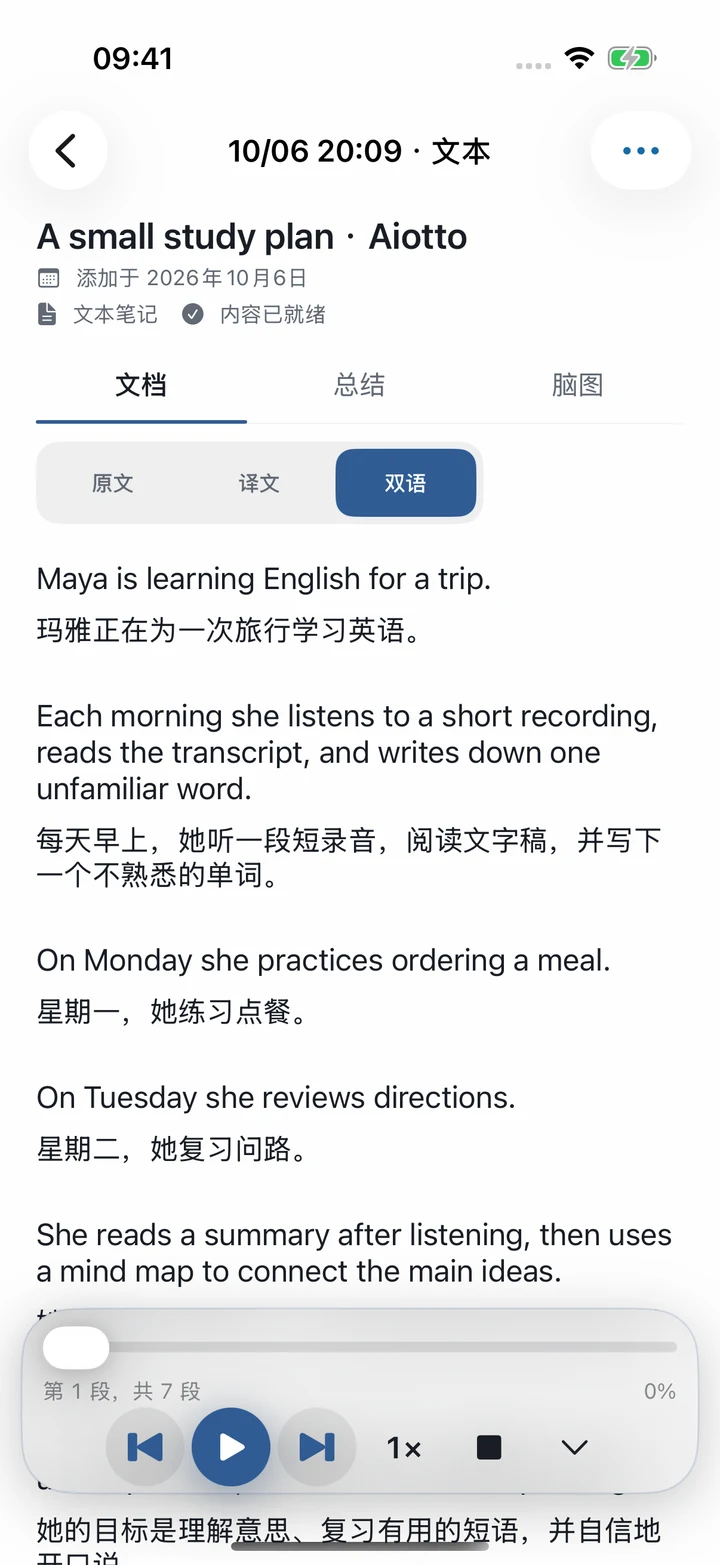
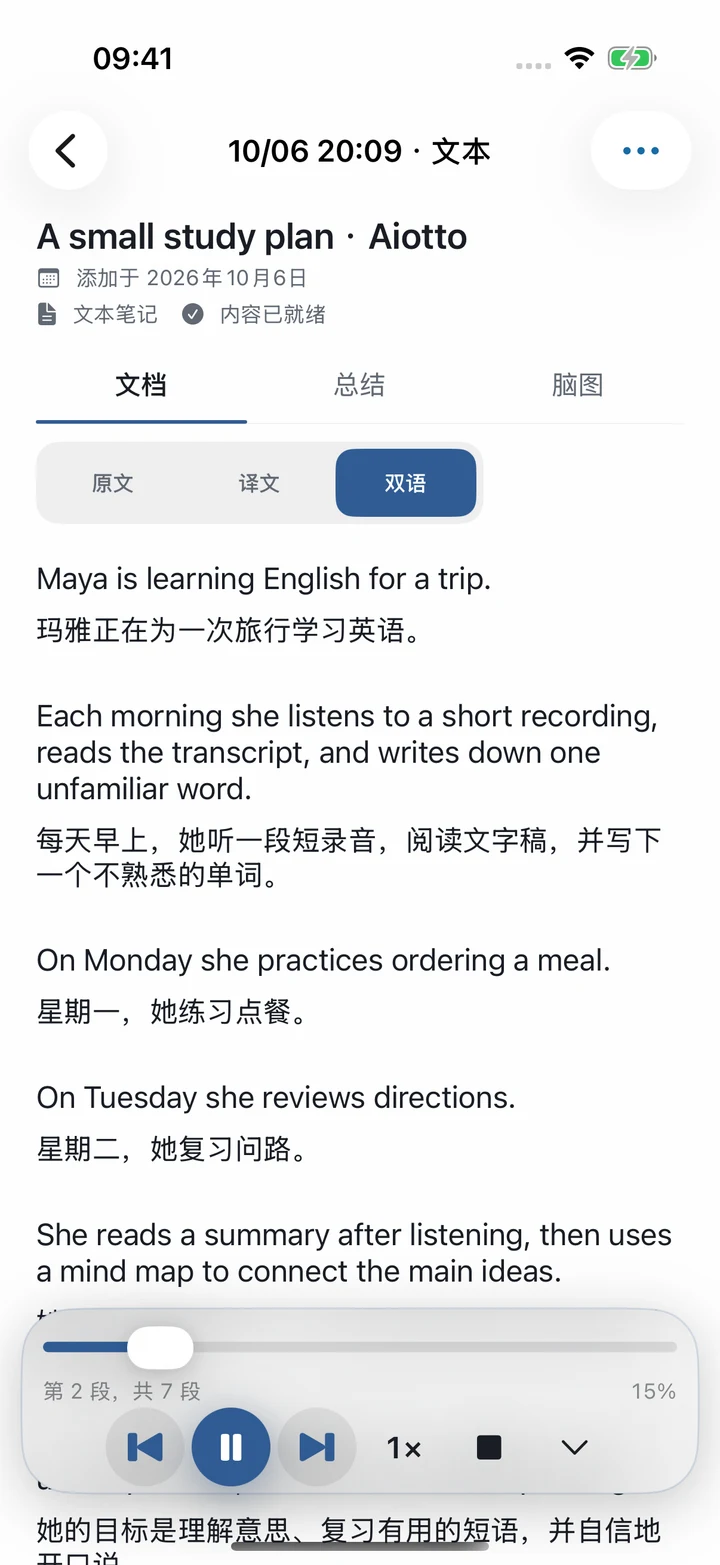
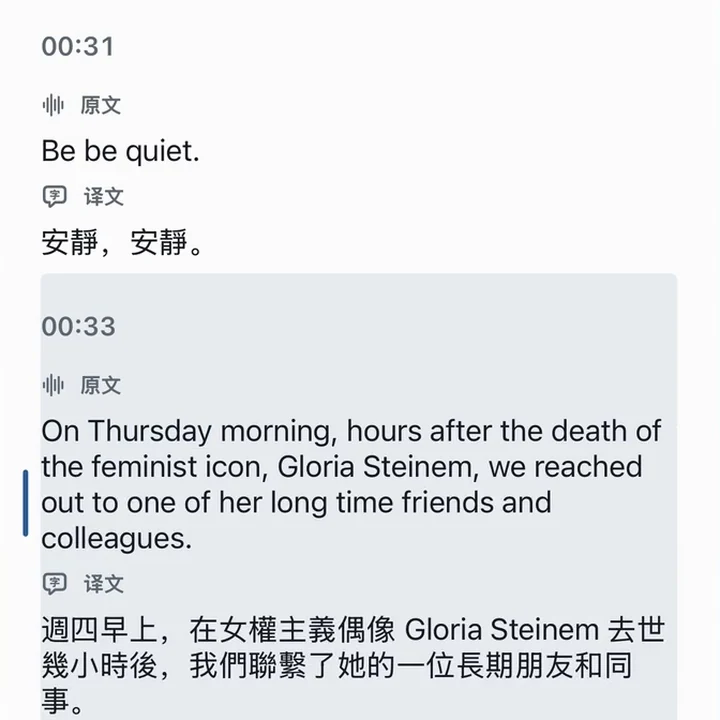
Original & translationSide by side, no switching back and forth
Listen and read along with the highlight
Real app interface · Sample learning content
Everything you can bring in
RecordingsPodcastsAudio & videoPDF / EPUBScan text
Core features
What you hear and read becomes something you can learn.
Transcribe, translate, look up and organize — all on the same page.
Foreign texts, made easy to read.
Everything that was said, ready to revisit.
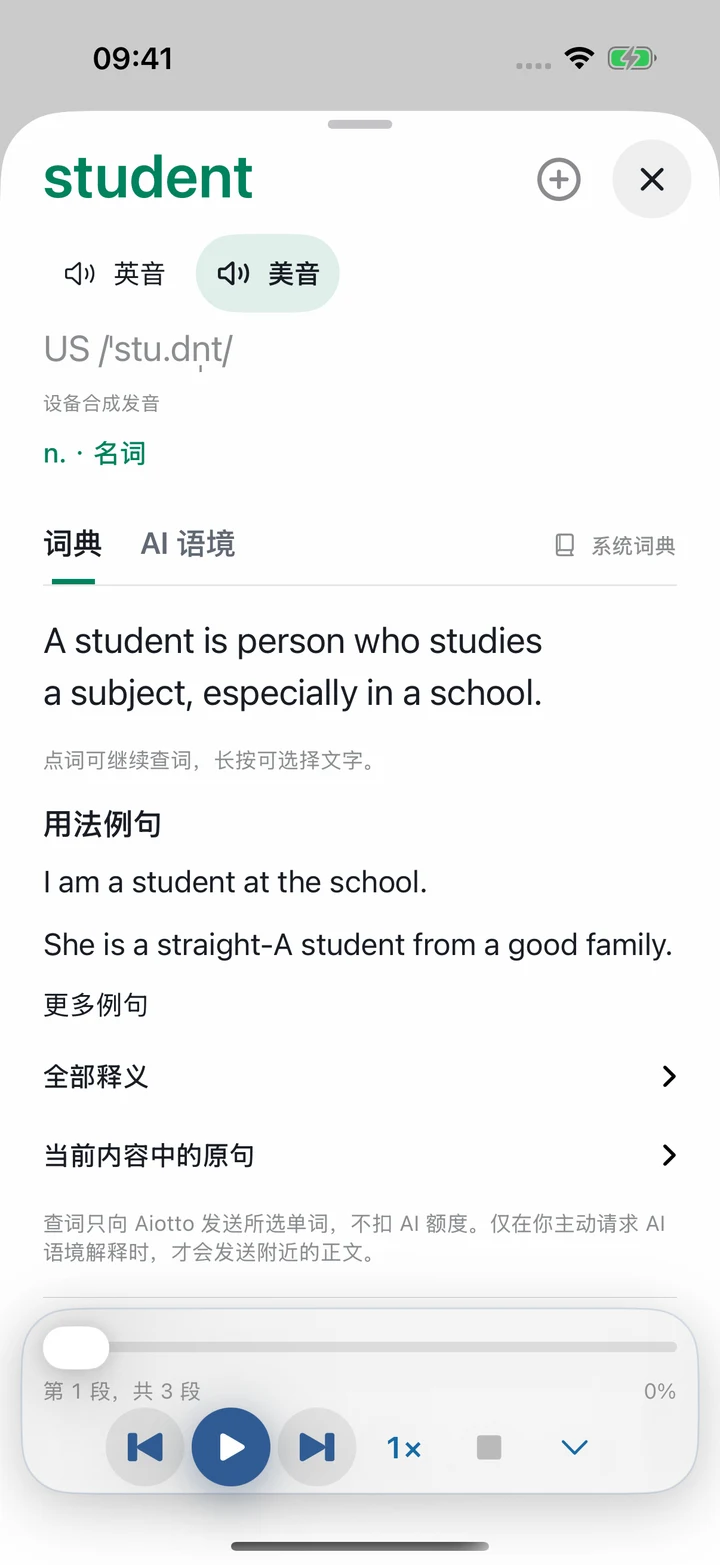
Look up a word without breaking your flow.
Key points and structure at a glance.
Choose a feature to see the real app screen
Give your words a voice.
Read aloud
When your eyes are tired, let your ears keep reading.
Import a PDF, EPUB or text and let Aiotto read it to you. Keep reading while you commute, walk or do chores.
Your own books, chapter by chapterEPUB by chapter, PDF by page — pick up where you left off.
Follow the highlight, set your speedThe text highlights as it’s read, with play, pause, speed and paragraph controls at hand.
Listen, then organizeRevisit the original, create a summary or mind map, and keep what you learned.
Available voices are shown in the app.
More features
More help for learning languages.
All in the same app, nothing extra to download.
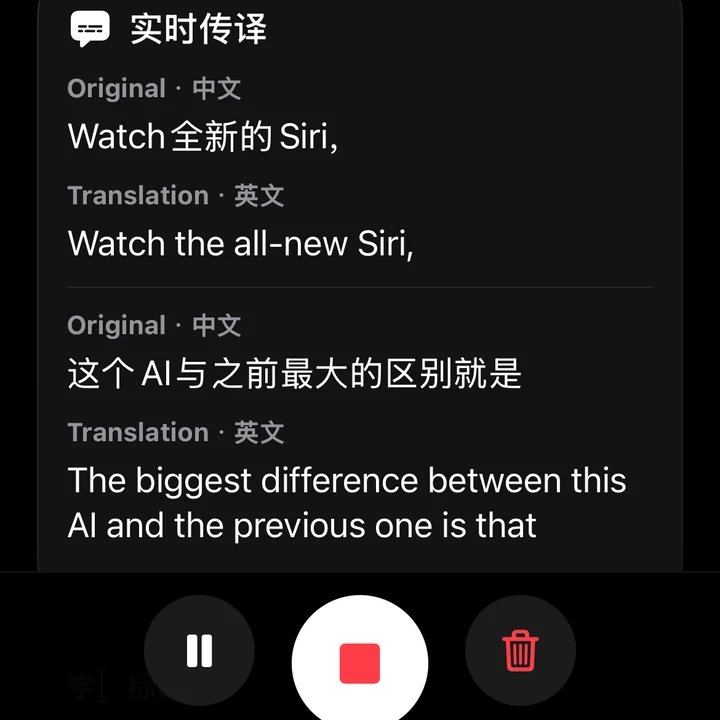
Otto live interpretation
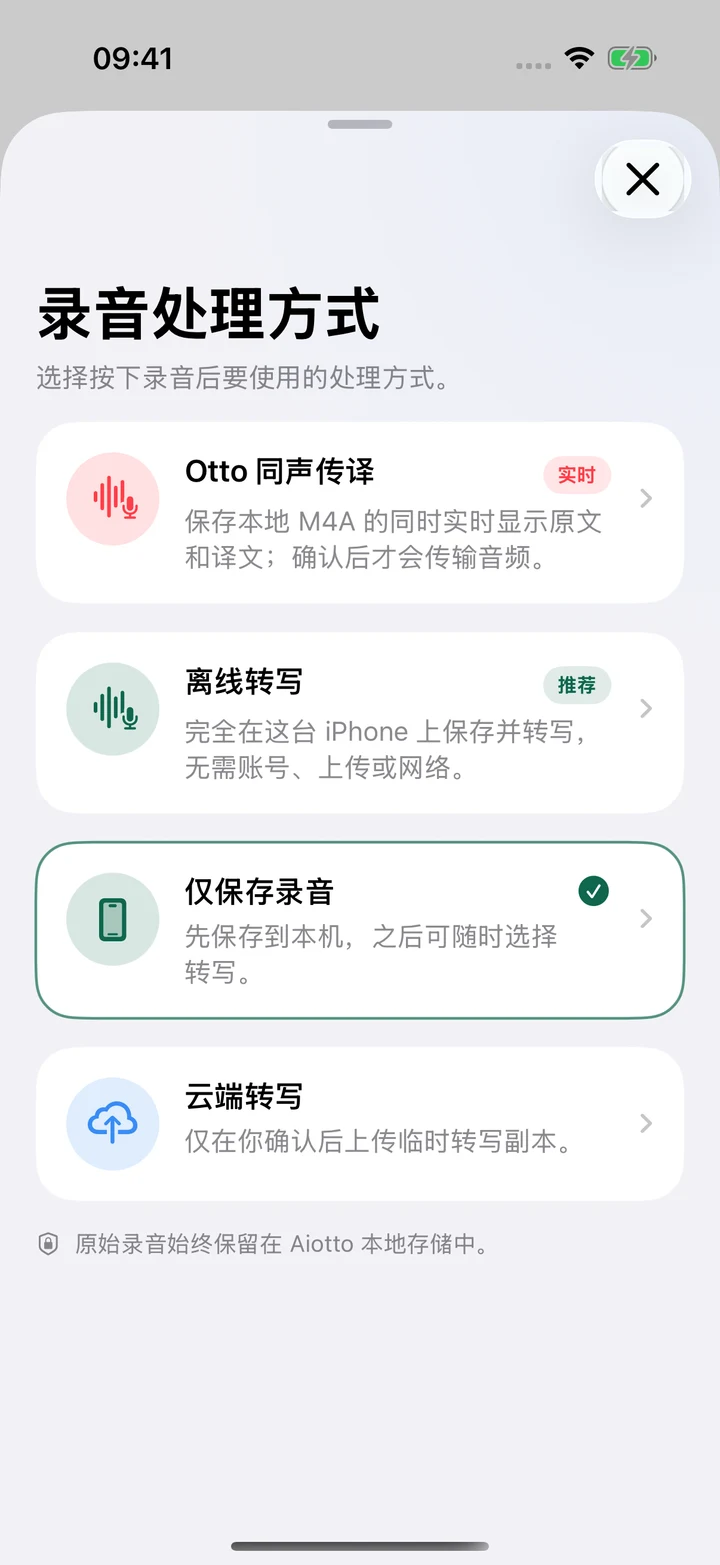
Transcribes and translates live while you record, then saves the original and translation together.
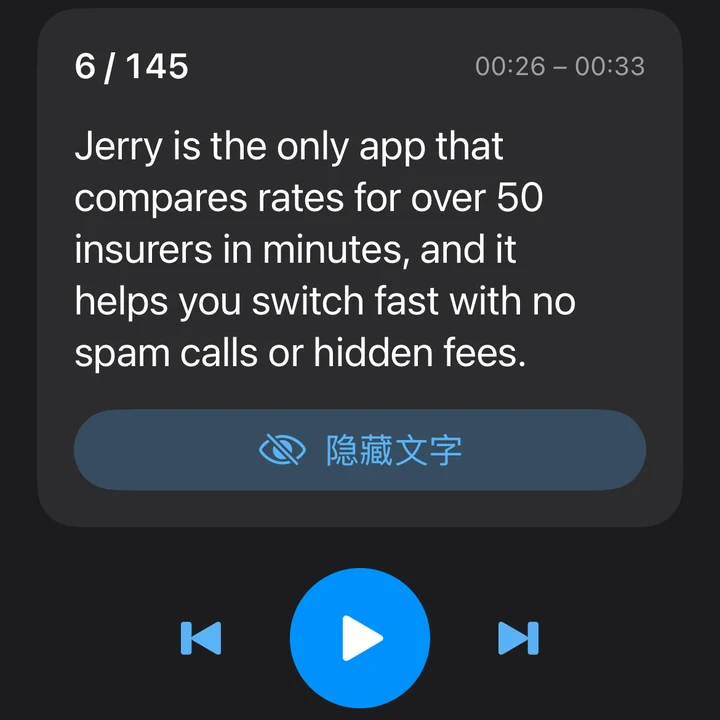
Listening practice
Replay the original audio paragraph by paragraph: listen first, then reveal the text and translation.
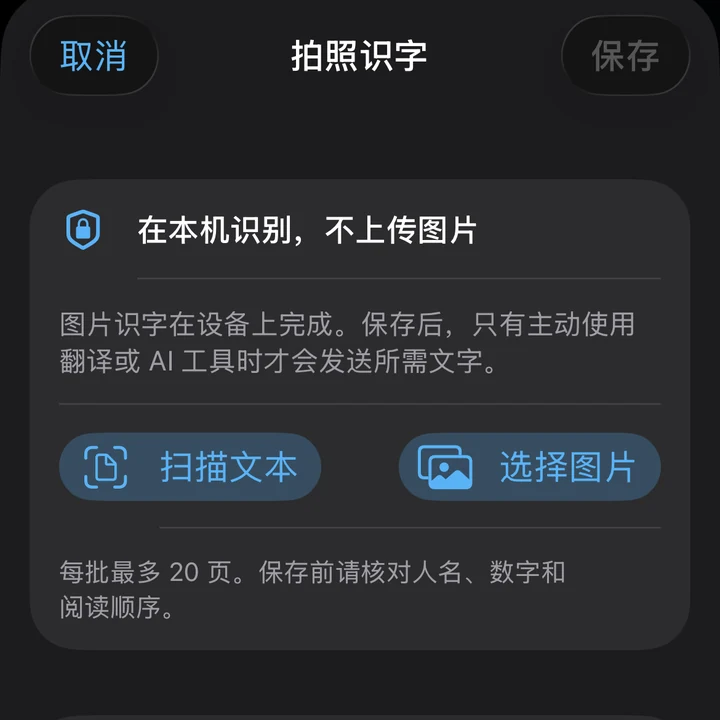
Scan text
Snap a book page, handout or screen; once it’s text, you can have it read aloud, translate it and look up words.
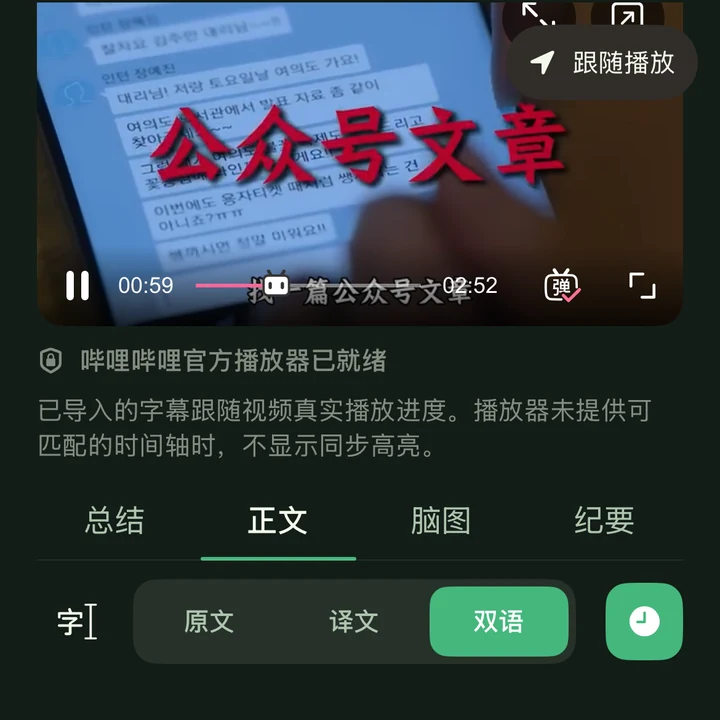
Import video links
Paste a Bilibili video link to get a transcript you can follow as you listen.
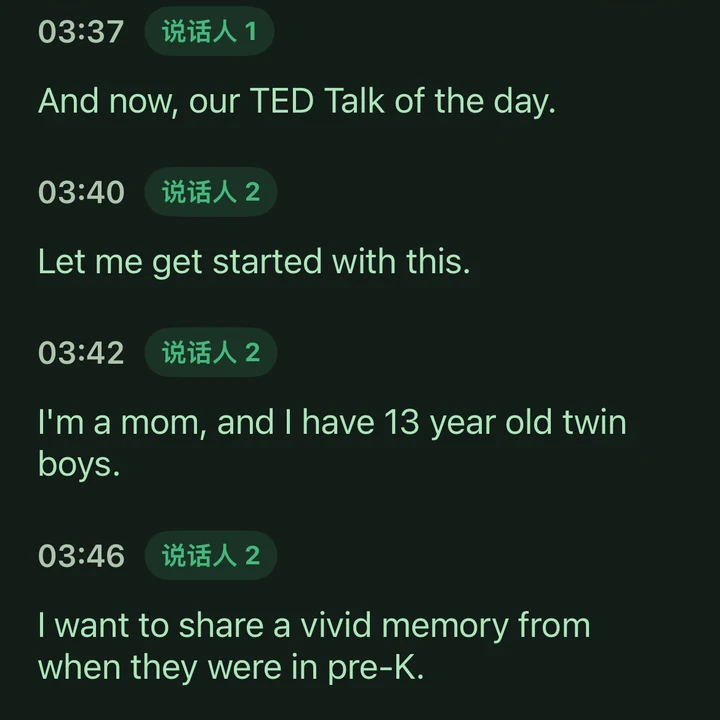
Speaker identification
In multi-speaker audio, mark who said each part in one tap and rename speakers, so meetings and interviews are easier to review.
Podcast transcript
Find and play podcasts, turn episodes into transcripts and check the text whenever you miss something.
Some features need a connection and use cloud quota; see the app for details.
Video tutorials
Follow the videos and get started in minutes.
Real screen recordings with step captions in Chinese. Press play and watch at your own pace.
01 Add content
Import learning material
Paste some text, save it to your library and start reading right away.
Import → Save → ReadChinese step captions
View written steps
Open the “Import” page.
Choose “Text”.
Paste or type a title and body text.
Tap “Add” to save the learning material.
Open the material you just saved under “Recent Imports” and start reading.
02 Understand the content
Bilingual reading & word lookup
Translate a whole text into a side-by-side view in one tap; tap an unknown word to see its meaning and hear it.
Side by side / Tap to look upChinese step captions
View written steps
In the first sample, open the document menu and tap “Translate”.
Choose the target language.
Read the data-sharing notice and continue after confirming your consent.
Compare the original with its translation.
Open another, untranslated text and tap a word.
View its meaning and phonetic symbols, and listen to British or American pronunciation.
03 Keep listening and reading
Read-aloud & playback controls
Let the app read to you, follow the highlight, and pause or change the speed any time.
Play / Pause → Follow the highlight → SpeedChinese step captions
View written steps
Open the body of your learning material.
Play or pause read-aloud in the player.
Follow the text highlighting as you listen and read.
Open the playback speed menu to see the available options.
04 Connect your ideas
Summaries & mind maps
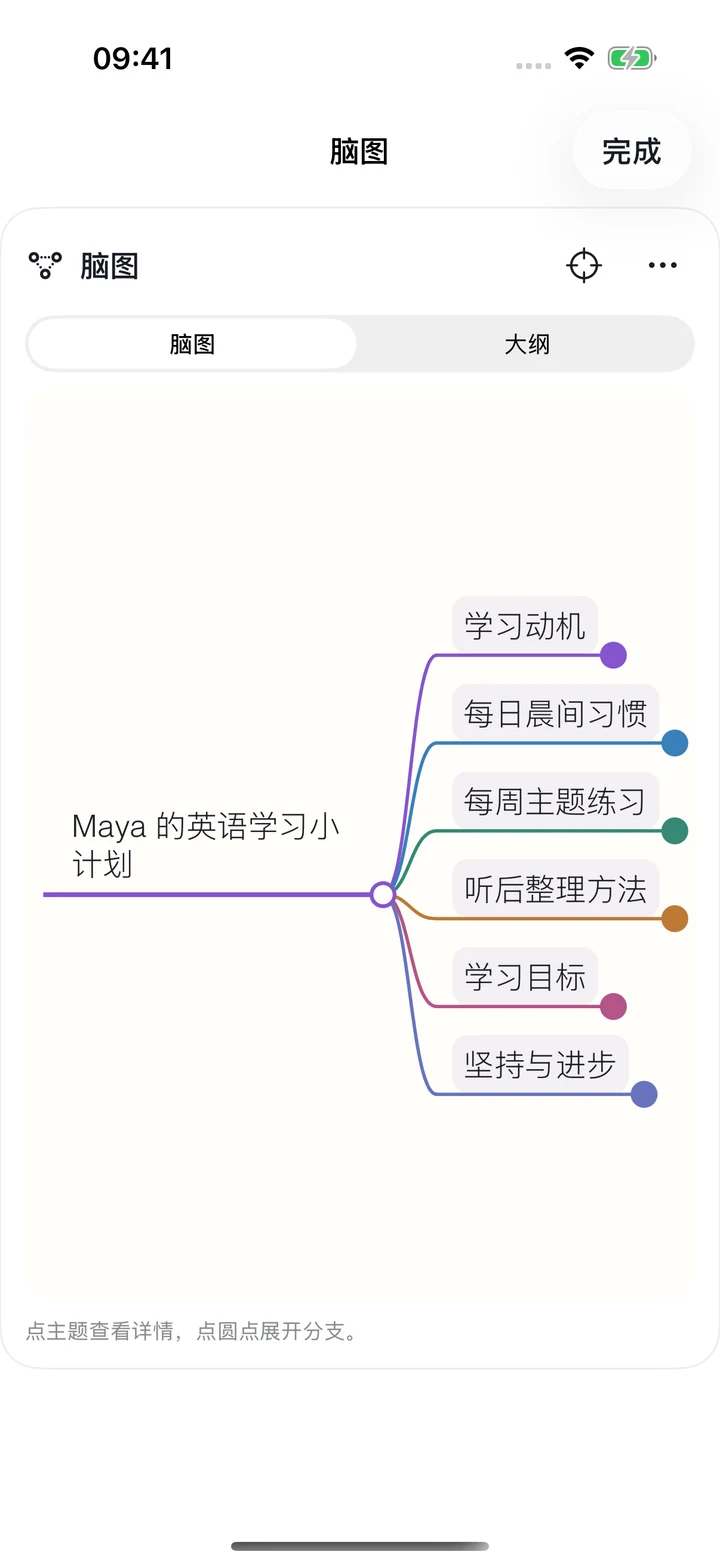
See the key points and structure of long content at a glance; expand the mind map or switch to an outline.
Summary / Mind map / OutlineSample content
View written steps
Open the material and view its existing summary.
Switch to “Mind Map”.
Open the full-screen view.
Tap the dot beside a node to expand its branches.
Switch to “Outline” to view the hierarchy.
05 Listen to a book
Your favorite books, a new way to read
Import your own e-book, pick a chapter and listen. Read with your ears on the go, then pick up the text when you stop.
Choose a chapter · Listen awhile · Keep readingWith audio
View written steps
Open an imported e-book in the “Audiobooks” library.
Tap “Chapters” and choose the chapter you want to read.
Tap play to hear the current chapter in a Premium voice.
Follow the paragraph highlight and playback progress as you listen and read.
When you need a break, tap pause and keep reading.
The video shows only a very short excerpt of the book.
06 Listen to podcasts
Listen to a podcast with its transcript
Open an episode, listen to the original audio while reading the transcript, and look back whenever you miss something.
Play · Follow the transcriptWith audio
View written steps
Open the episode’s Memo page.
See the audio player and transcript together on one page.
Tap play to hear the episode audio.
Follow the transcript as playback progresses.
Scroll through the text while playback continues.
Tap pause and continue listening later.
Tutorials were recorded with demo content, and some screens show results that had already been generated. The latest app may look different.
Three steps
One piece of content. Three steps to learning.
1
Bring it in
Record audio, import a file, or snap the text on a page.
Recordings / Podcasts / Files / Photos
2
Take time to understand
Listen again, use read-aloud, look up words, and switch to bilingual display when you need it.
Listen and read without rushing past
3
Organize and keep
Turn key points into summaries and mind maps, then review, revise or export to share.
Make the content your own notes
Your content, your choice
Local first. Cloud by choice.
Recordings and imported files are saved on your device by default. When you use cloud transcription, translation, AI organization or cloud read-aloud, the necessary content is sent to the respective service providers.
When you listen to recordings or podcasts or read foreign-language material, use it to transcribe (telling speakers apart in conversations), read bilingually, look up words and listen to read-aloud, then take notes with AI summaries and mind maps. Start with one recording or one article.
Do I need to sign in or go online?+
Offline transcription needs no account, and local content can be viewed on your device. Podcast catalogs, cloud transcription, online word lookup and AI features need an internet connection. See the app for account and quota requirements.
Can I use it for free?+
You can download and try Aiotto for free. Optional monthly and annual Pro subscriptions are available. See the app and App Store for prices, quotas, automatic renewal and cancellation details.
Can I import Bilibili videos?+
Yes. Paste a link to a public Bilibili video to import it and follow the transcript as you listen. Whether a video can be imported depends on whether it is public and on the platform’s restrictions. Aiotto doesn’t need, and doesn’t support, signing in to your Bilibili account.
What should I know before importing content?+
Only import content you own, have permission to use or may lawfully use. Remote links depend on the source platform, network and access permissions. Aiotto does not support bypassing paywalls, copyright protections or access restrictions.
Use cases
Start from one concrete need.
Each page walks through one scenario in full: how to do it, what to watch for, and where Aiotto helps.